We may earn a commission when you buy through links on this page, at no extra cost to you. How we test and make money
Short answer
Open Settings, tap Cellular (called Mobile Service in some countries), then tap Add eSIM. Choose Use QR Code and scan the code from your eSIM provider, or use the install button in the provider’s app. Your iPhone needs to be an XS, XR or newer, and carrier-unlocked.
Before you start
- An iPhone XS, XR or newer. All of these support eSIM.
- An iPhone that is carrier-unlocked, so it accepts other networks’ SIMs.
- A Wi‑Fi connection for the install.
- The QR code or install link from your eSIM provider.
Install your eSIM, step by step
- Connect to Wi‑Fi.
- Open Settings and tap Cellular. In some countries this is called Mobile Service or Mobile Data.
- Tap Add eSIM.
- Tap Use QR Code and scan the code from your provider. If the provider has an app, you can tap its install button instead.
- Give the new line a name, such as “Travel”, so it’s easy to spot.
- Choose which line to use for mobile data. Pick the travel eSIM when you’re abroad.
- When you land, open the travel line’s settings and turn on Data Roaming.
Steps checked against Apple’s own guides: Set up eSIM on iPhone and Use an eSIM while traveling internationally (Apple Support), checked 20 October 2026. Menu names can differ slightly between iOS versions and countries. On iOS 26 or later, your iPhone may offer to Turn On Travel eSIM when you arrive; tap it and follow the prompts.
Tip: Install the eSIM a day or two before you fly. Don’t delete it until your trip is over: most QR codes only work once.
Troubleshooting
The eSIM is installed but there’s no signal
Check that Data Roaming is on for the travel line, and that Cellular Data is set to it. If it still doesn’t connect, turn Airplane Mode on and off, or restart your iPhone.
The QR code won’t scan
Turn up your screen brightness, or show the code on a second screen. You can also tap Enter Details Manually and type the SM-DP+ address and activation code from your provider.
I can’t see Add eSIM
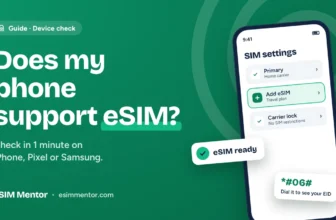
Your iPhone may be locked to your home carrier. Go to Settings > General > About: Carrier Lock should say No SIM Restrictions. If it doesn’t, ask your carrier to unlock it before you travel. More fixes: eSIM not working abroad.
Related deals
Need an eSIM first? Compare plans in the eSIM Finder.

Saily vs Nomad


Joseph Larkin is the founder and editor of eSIM Mentor. He compares travel eSIM plans and checks every price on the provider's own website before it goes on the site, and every coupon is tried at checkout before it is listed. His aim is simple, honest advice that helps travelers pick the right plan and avoid roaming bills.